安装虚拟机提示“无法安装服务VMAuthdService”

时间:2026-02-13 15:37:37

1、安装虚拟机过程中会提示“无法安装服务VMAuthdService”

安装虚拟机提示“无法安装服务VMAuthdService”

2、按组合键Ctrl+Shift+Esc 进入windows任务管理器窗口

安装虚拟机提示“无法安装服务VMAuthdService”

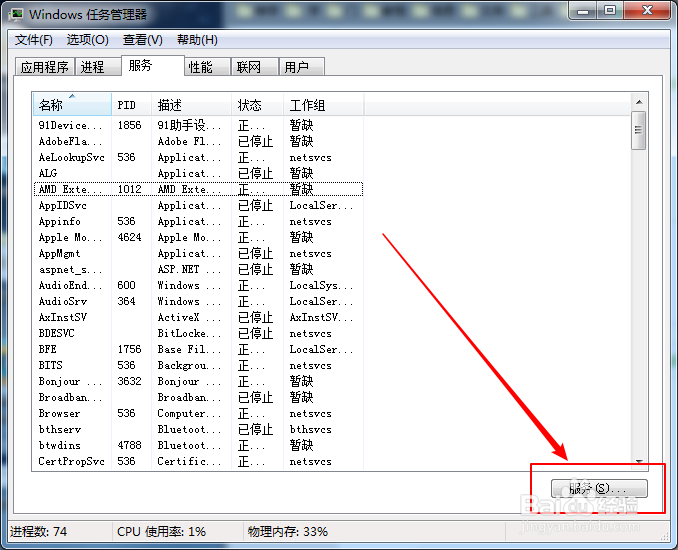
3、在 windows任务管理器 窗口中切换到 服务 界面

安装虚拟机提示“无法安装服务VMAuthdService”

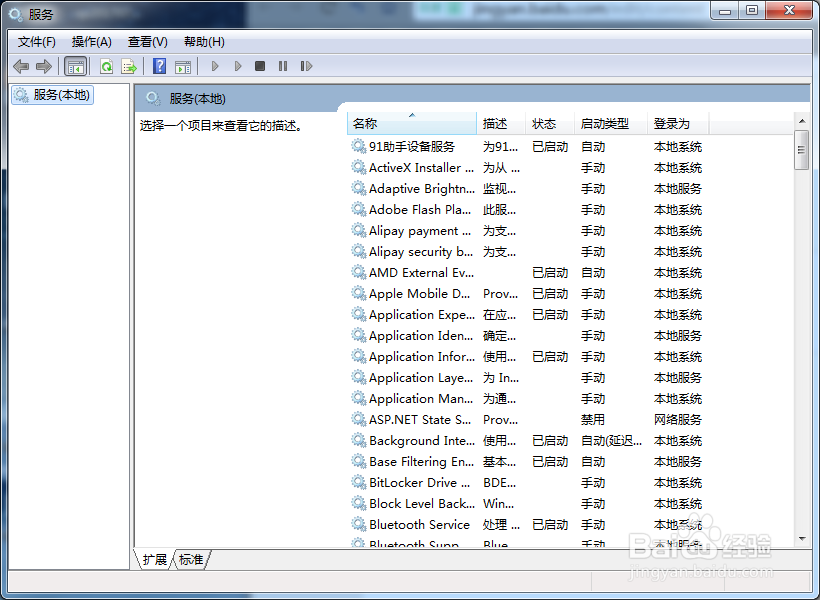
4、在 任务管理器 服务界面的右下角左键单击服务,进入 服务窗口

安装虚拟机提示“无法安装服务VMAuthdService”

安装虚拟机提示“无法安装服务VMAuthdService”

5、在 服务窗口 找到 VMware Authorization Service 服务

安装虚拟机提示“无法安装服务VMAuthdService”

6、如果 VMware Authorization Service 服务 没有启动,启动就好

安装虚拟机提示“无法安装服务VMAuthdService”

7、如果 启动 VMware Authorization Service 服务 出现找不到路径,或者服务不存在

安装虚拟机提示“无法安装服务VMAuthdService”

8、不是升级导致的,可以用原程序修复安装,如果是升级出现的这种情况,卸载以前版本,再安装就可以了

安装虚拟机提示“无法安装服务VMAuthdService”

© 2026 途途旅游
信息来自网络 所有数据仅供参考
有疑问请联系站长 site.kefu@gmail.com