1、打开记事本,复制以下内容到记事本中。如(图1)
@echo off
echo 正在自动清理垃圾文件,请稍侯......
del /f /s /q %systemdrive%\*.tmp
del /f /s /q %systemdrive%\*._mp
del /f /s /q %systemdrive%\*.log
del /f /s /q %systemdrive%\*.gid
del /f /s /q %systemdrive%\*.chk
del /f /s /q %systemdrive%\*.old
del /f /s /q %systemdrive%\recycled\*.*
del /f /s /q %windir%\*.bak
del /f /s /q %windir%\prefetch\*.*
rd /s /q %windir%\temp & md %windir%\temp
del /f /q %userprofile%\cookies\*.*
del /f /q %userprofile%\recent\*.*
del /f /s /q "%userprofile%\Local Settings\Temporary Internet Files\*.*"
del /f /s /q "%userprofile%\Local Settings\Temp\*.*"
del /f /s /q "%userprofile%\recent\*.*"
echo 已成功清除系统垃圾!
echo. & pause

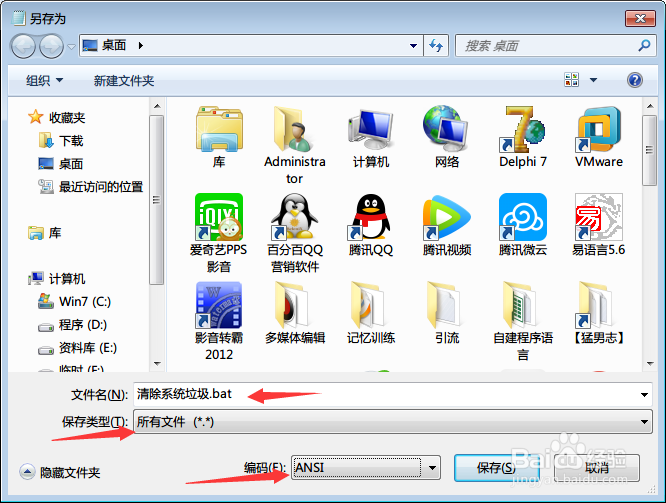
2、选 “文件”- “保存” (或者直接按CTRL + S)
在弹出的窗口中,
输入文件名:清除系统垃圾.bat
“保存类型”,选择:所有文件(*.*)
“编码”,选择ANSI
然后,点击保存。 如图2。
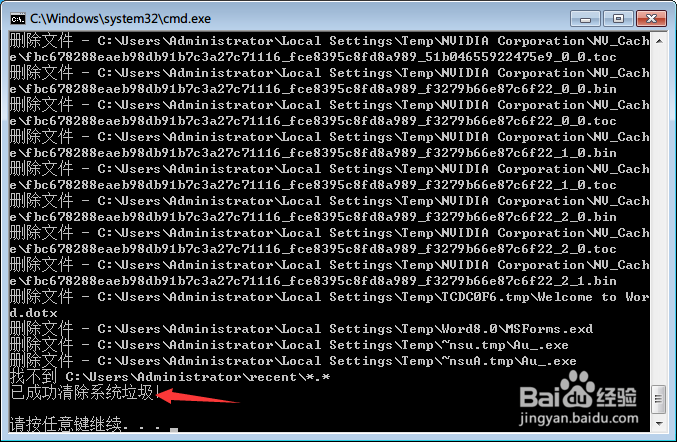
3、这个时候,我们找到那个文件,(上例中是在桌面),然后,双击运行它,直到出现“已成功清除系统垃圾!”,然后按任意键关闭窗口即可。
如图3。