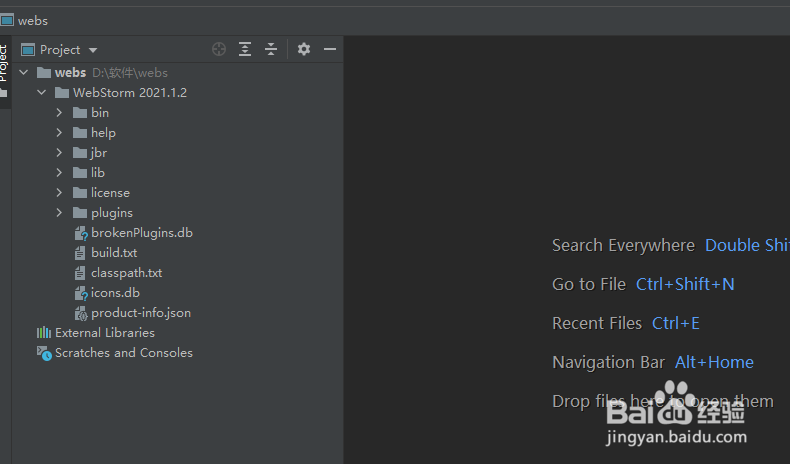
1、首先,打开一个2WebStorm 的界面中
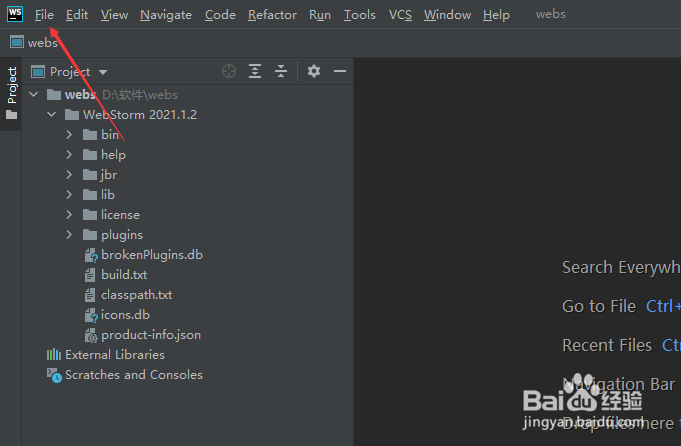
2、然后点击左上角中的 file 菜单
3、弹出了下拉菜单选择为 settings 选项

4、进入到了settings的界面中,点击左侧中的 notification 选项

5、进入到了notification 的界面中,去掉 display balloon notification 选项勾选

6、去掉 display balloon notification 选项勾选之后,点击 ok 按钮

1、首先,打开一个2WebStorm 的界面中
2、然后点击左上角中的 file 菜单
3、弹出了下拉菜单选择为 settings 选项
4、进入到了settings的界面中,点击左侧中的 notification 选项
5、进入到了notification 的界面中,去掉 display balloon notification 选项勾选
6、去掉 display balloon notification 选项勾选之后,点击 ok 按钮